Build visually
Add fields, arrange questions, and refine the flow without code.

Online form builder
Build a polished form in your browser, customize every question and interaction, and publish it anywhere your audience already is.
Trusted by 5,400+ customers globally.
Make it yours
Choose a layout, add images, and set your colors in Deformity’s design controls. Preview the result before publishing, then share a form that fits your website or campaign.
Want to try the respondent experience? Open the live demo below and use sample answers to explore it.
Open the demo in a new tab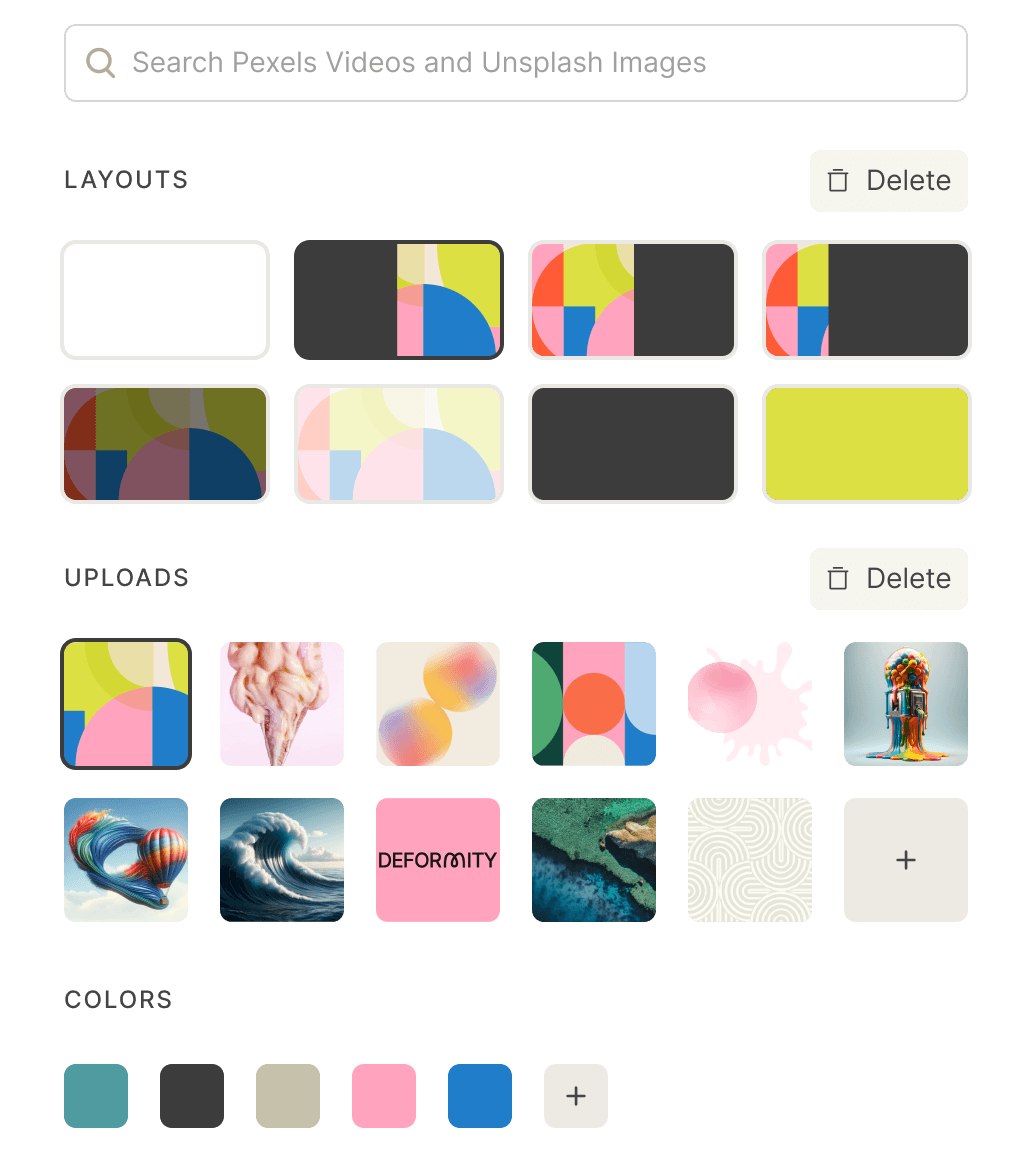
Add fields, arrange questions, and refine the flow without code.
Apply your brand, conditional logic, file uploads, and payments.
Share a link or embed your form for free. Use a custom domain on a paid plan.
A good online form does more than collect an email address. Here is how to build a client inquiry form that gives your team enough context to take the next step.
Use email for contact details, multiple choice for the service needed, and a text question for the project brief. Add a file upload if a reference document would help.
Start with a contact formIf someone selects website design, ask about their existing website. If they select another service, skip that question. Preview each path so nobody reaches an irrelevant or missing step.
Learn how logic worksShare a direct link in an email or social profile, or embed the form on your contact page. Custom domains are a paid option for a branded form address.
Choose a sharing methodConnect Google Sheets to organize submissions in a spreadsheet, or use a webhook to pass responses to your own tools. Submit a test response and check that it arrives before launch.
Connect Google SheetsNeed help choosing? Explore form templates, the free plan details, or our survey builder for feedback and research.
Once the basic questions are in place, connect them into a useful experience. Here is a practical setup for a workshop booking form. Each feature has a different job; you do not need to enable all of them on every form.
Ask for a name once, then use it in a later question or thank-you message. Type @ in a supported field to choose an earlier answer. For example, “Thanks @{Name}, which workshop would you like to attend?” makes the next step more personal without adding another field.
Use answers in later questionsVariables can also be used in supported payment expressions. If you collect a ticket quantity and have a price variable, multiply them to calculate the total. Check single-ticket and multiple-ticket examples before accepting real payments, and clearly show what the respondent is buying.
Learn about calculation expressionsAdd a campaign name through hidden values when you share the booking link. That lets you distinguish newsletter registrations from another source without asking attendees how they found you. Use the Share dialog to configure the values and verify them in a test submission.
Track campaign sourcesAfter submission, show a confirmation or redirect to a relevant page. A workshop form could send attendees to a preparation guide. Check that the destination works on mobile and gives them the details they need next; a redirect is separate from sending an email.
Set up routing and redirectsChoose the connection that matches the task. A spreadsheet helps organize records; an alert helps someone respond; analytics helps explain where visitors come from. Configure the destination and send a sample submission before relying on the workflow.
Open your form’s Insights view to review completion metrics and the flow funnel. The funnel shows the share of respondents reaching each question. Use it to locate a possible problem, then inspect the wording and question type before deciding what to change.
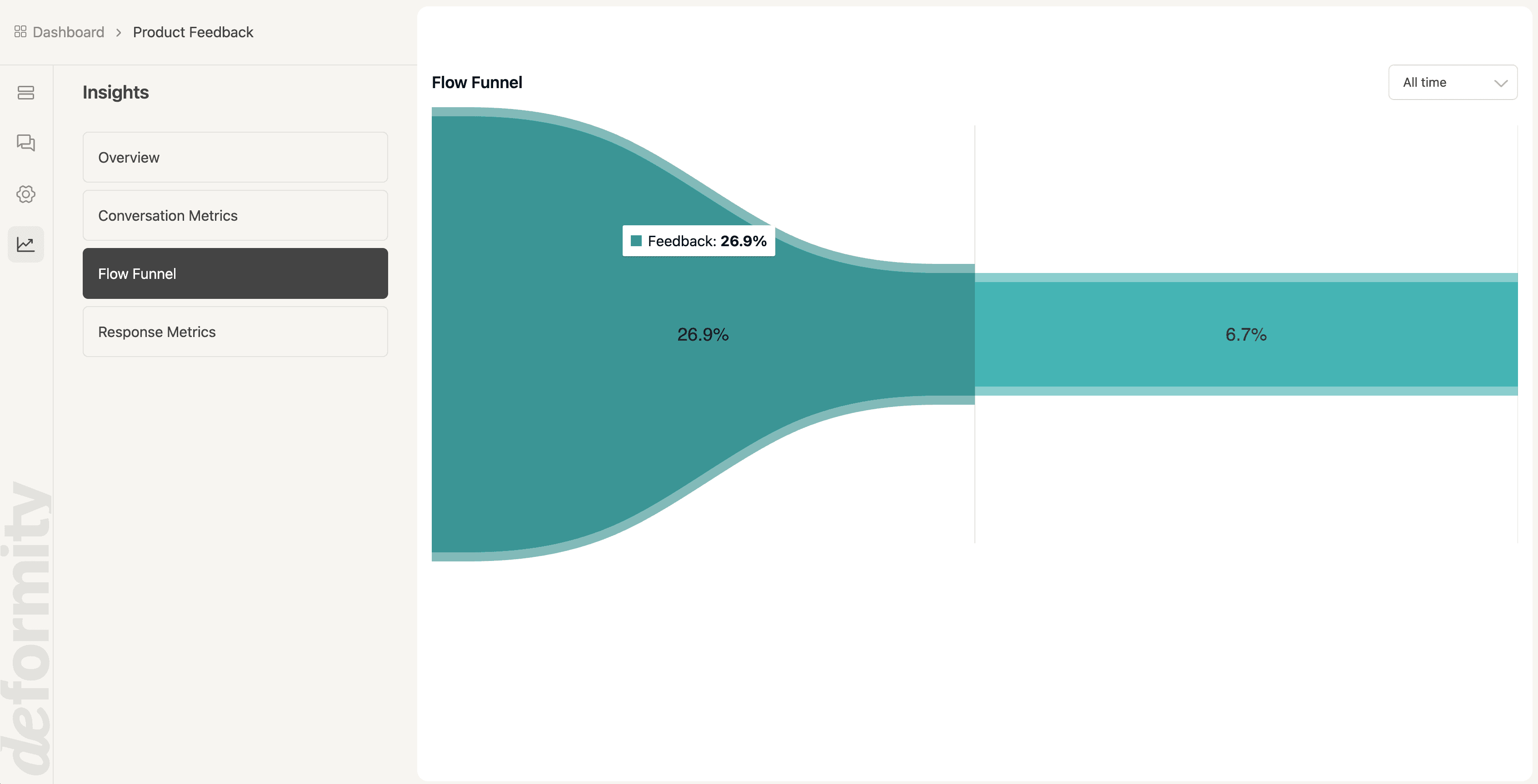
For example, if a required phone-number question loses people on a general inquiry form, ask whether you really need a phone number at that stage. Try making it optional or explain why it is needed. Compare similar traffic periods after the change; a small sample or a new audience can also change the numbers.
Read the analytics and export guideYou can start this workflow on Free with unlimited static responses. Custom domains, your own logo, and removal of Deformity branding require a paid plan. Compare plan limits and review the privacy policy before launch.
An online form builder lets you create, customize, and publish forms in a browser without writing code. Use it for lead capture, registrations, surveys, applications, feedback, and more.
Yes. Start from a blank form, a template, or an AI-generated draft, then edit fields, design, logic, and publishing settings visually.
Yes. Share a Deformity form by link or embed it into your website while keeping the experience aligned with your brand.
Build contact forms, lead-generation forms, surveys, quizzes, event registrations, job applications, client intake forms, and payment flows.
Yes. Variables reuse earlier answers in supported fields and can appear in payment amount expressions. Use conditional logic for different paths through the form. Preview the calculation and every branch with sample answers before collecting real payments or submissions.
Open Conversations to review responses and export them as CSV. Use Insights for completion metrics and the flow funnel, or connect Google Sheets when you want new submissions organized in a spreadsheet.
AI-driven forms can adapt to the visitor’s browser language. Choosing a fixed default language turns off that automatic behavior. Static forms display in one language. Check the language setting and preview the experience for your intended audience.
A classic, static form gives respondents the questions you configured. An AI-driven form can respond conversationally and ask for context. Both can use design and logic; choose a static form for consistent structured collection or AI when an explanation matters as much as the initial answer.
See how Deformity compares with popular form builders when you need AI-powered follow-up questions, flexible logic, and a free way to collect unlimited static responses.
Start with a free account, review your questions, and publish when you are ready. Unlimited static responses are included.
Create a free form