
Connect Deformity with Email
Email is the simplest way to stay on top of new Deformity responses when you want submission alerts delivered straight to your inbox without connecting another app.
Receive built-in email alerts for every new Deformity submission and send them to one or more inboxes without connecting another tool.
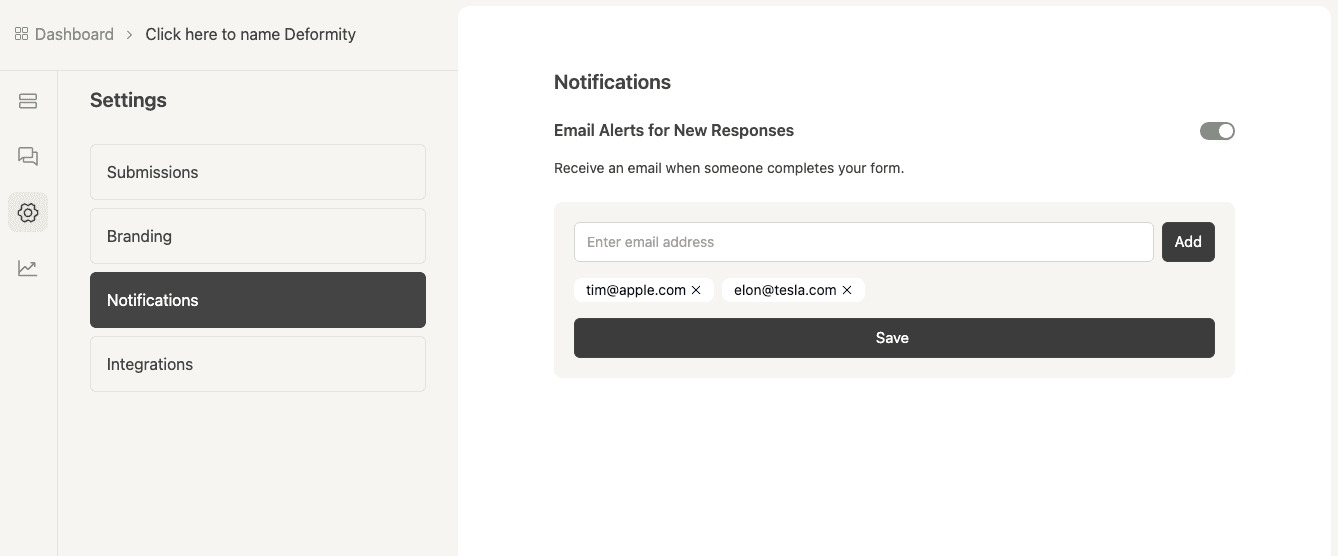
How to connect Deformity with Email
Open the form you want to monitor
Choose the Deformity form that should send alerts so you can manage notifications at the form level.
Go to Settings > Notifications
Open the Notifications section in the builder to find the built-in email alerts toggle for that form.
Turn alerts on and add recipients
Enable email notifications, enter one or more recipient addresses, then submit a test response to confirm the alert arrives as expected.
What you can do with Deformity + Email
Solo founder visibility
Get notified the moment a lead, application, or intake form is completed without needing a team chat tool or automation setup.
Shared inbox coverage
Send the same submission alert to multiple teammates so sales, support, or operations can all stay in the loop.
Critical form monitoring
Keep an eye on high-priority forms where every submission matters and a quick response window can change the outcome.
Inbox-first follow-up
Use the workflow your team already checks all day by letting the first alert arrive in email instead of another dashboard.
Ready to connect Deformity with Email?
Build the form first. Connect the workflow right after.
Deformity keeps the form experience polished while making it easier to route submissions into the systems your team already depends on.
Frequently asked questions
Do I need another integration tool to use email alerts?
No. Email notifications are built into Deformity, so you can turn them on directly from the form settings without using Zapier, webhooks, or another connector.
Can Deformity send email notifications to multiple people?
Yes. You can enter multiple email addresses so more than one person receives the alert when a new submission arrives.
Where do I manage email notifications for a form?
Open the form in the builder and go to Settings > Notifications. That is where you can enable, disable, and update the recipient list.